10 Tips for Choosing a 60m HDMI Extender?
Choosing a 60m Hdmi Extender is not simply a matter of selecting the longest advertised distance. Real installations involve wall thickness, cable quality, signal interference, and display compatibility. A system may work perfectly on a bench, then flicker beside a lighting controller or network switch. Small details matter.
This guide explores ten practical tips for selecting a reliable extender for classrooms, conference rooms, retail displays, and home theaters. It considers resolution support, HDMI version, HDCP compatibility, EDID management, audio formats, and transmission methods. Cat6 cable quality also deserves attention. Solid-copper cable usually offers more dependable performance than poorly made alternatives. Keep the cable path clean.
Hands-on testing remains valuable. Checking a 4K signal at the full 60-meter distance can reveal problems that short demonstrations hide. Image dropouts, delayed handshakes, and intermittent audio often appear during startup rather than playback. However, distance claims are not universal. Results can change with connectors, cable routing, power quality, and connected devices.
There is no perfect extender for every project. Some models provide excellent range but limited audio support. Others include useful features, yet require careful configuration. This guide evaluates those trade-offs with practical installation experience and manufacturer specifications. A little skepticism helps. The right choice should match the complete signal path, not just the number printed on the box. Expect a few compromises, and verify the important ones before installation.
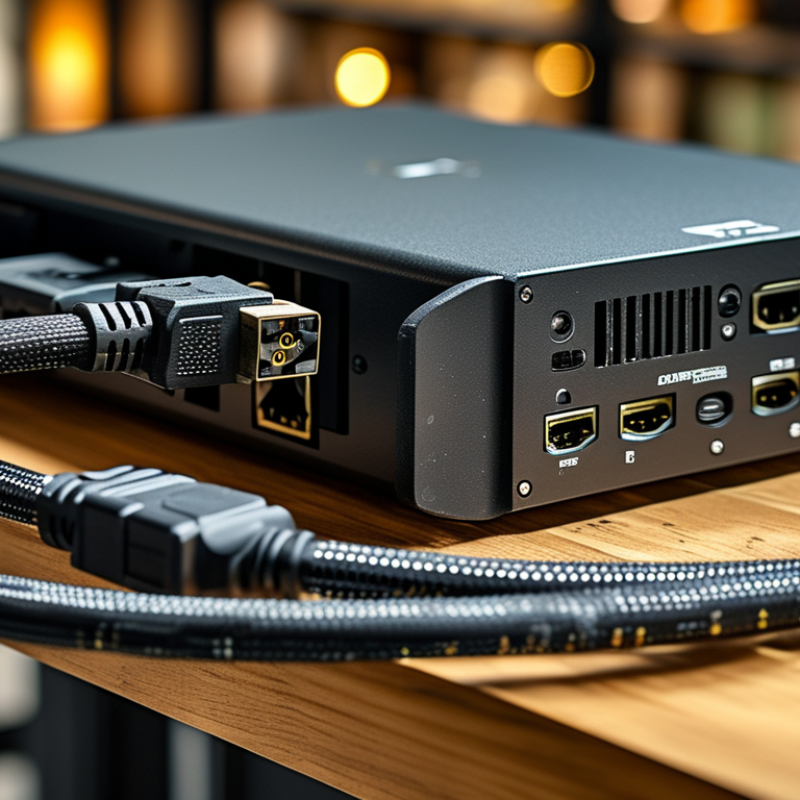
Define 60m HDMI Extenders and Their Main Transmission Methods
A 60m HDMI extender carries high-definition audio and video beyond the normal cable limit. It uses a transmitter and receiver at opposite ends. The distance is a design target, not a guarantee. Walls, electrical noise, connectors, and cable quality can reduce stability. HDMI Licensing Administrator data lists up to 48 Gbps for HDMI 2.1 signals, so bandwidth matters.
Three transmission methods are common.
Twisted-pair extenders send HDMI signals through balanced network cable. TIA-568.2-D defines a 100m channel for balanced twisted-pair cabling, but a 60m extender still needs careful installation.
Fiber extenders convert electrical signals into light. They usually resist electromagnetic interference better.
IP-based extenders send video through network switches, allowing multi-room distribution. However, compression, latency, and network congestion may appear.
My practical mistake was trusting distance labels without testing the complete cable path.
Tips:
- Tip 1: Check the required resolution.
- Tip 2: Confirm refresh rate support.
- Tip 3: Verify bandwidth ratings.
- Tip 4: Measure the real cable route.
- Tip 5: Choose certified cable categories.
- Tip 6: Test EDID compatibility.
- Tip 7: Check HDCP support.
- Tip 8: Avoid unnecessary couplers.
- Tip 9: Inspect ventilation around devices.
- Tip 10: Test with the final display.
Short tests can mislead. A reliable installation should run for hours, across every intended input and output.
Assess Resolution, Refresh Rate, HDR, and HDCP Compatibility
When choosing a 60m HDMI extender, match its bandwidth to your actual display system. Confirm support for the required resolution, such as 4K, rather than trusting distance claims alone. A 4K signal at 60Hz needs more bandwidth than 4K at 30Hz. Check the fine print. Also verify whether the extender supports your chosen color depth, chroma format, and RGB or YCbCr output. These details affect text sharpness and color accuracy.
Refresh rate deserves careful attention. A display used for gaming or live production may need 120Hz, while office content often works at 60Hz. Confirm that both the source and screen support the same timing. HDR compatibility is equally important. Look for support matching your content, including HDR10 or other required formats. Some extenders pass video correctly but remove HDR metadata. That creates a flatter picture. I have seen this mistake during installation.
HDCP compatibility can decide whether protected content displays at all. Check that the source, extender, receiver, and screen support compatible HDCP versions. A mismatch may produce a black screen or repeated signal dropouts. Test the complete setup with the longest cable before mounting anything. Test it locally. Inspect EDID behavior, audio formats, and power stability as well. Manufacturer specifications are useful, but real equipment can behave differently. Leave room for testing, because a perfect specification sheet does not guarantee a perfect installation.
Compare Cable Types, Signal Stability, and Installation Requirements
10 Tips for Choosing a 60m HDMI Extender
At 60m, cable design matters more than advertised resolution. Passive copper HDMI cables often lose stability as distance increases. Active copper models use signal equalization, but they still need careful power planning. Fiber HDMI cables usually handle long runs with lower signal loss and lighter weight. However, their connectors can be fragile. Handle them gently.
Check the source and display before choosing an extender. HDMI 2.1 supports bandwidth up to 48 Gbps, according to the HDMI Specification. A 4K signal at high refresh rates may exceed older extender limits. HDBaseT guidance supports uncompressed transmission over compatible category cable up to 100m. Actual performance depends on cable quality, termination, and interference. Use shielded category cable near motors, power supplies, or lighting controls. Keep data cables separated from electrical wiring where practical.
Installation details often decide success. ANSI/TIA-568.2-D limits a structured cabling channel to 100m, including patch cords. Leave service loops, label both ends, and test the complete route after termination. Extenders may require power at both endpoints. Check HDCP, HDR, audio formats, and EDID behavior before mounting equipment. I once trusted a clean-looking cable path and ignored ventilation; heat caused intermittent black screens. That mistake was avoidable. Test under real load, not only with a static menu. Clearance matters. Signal stability is never guaranteed by distance alone.
Choosing a 60 m HDMI Extender: Typical 4K60 Reach by Cable Type
Typical maximum distances shown for stable 4K at 60 Hz under suitable installation conditions. Passive copper HDMI cables usually require signal boosting well before 60 m, while active copper, fiber-optic HDMI, and HDBaseT solutions can reach or exceed 60 m. Actual performance depends on resolution, chroma format, cable quality, connector integrity, power, and bend radius.
Evaluate Reliability, Latency, Warranty, and Overall Value
Choosing a 60m HDMI extender requires more than checking maximum distance. HDMI 2.1 supports bandwidth up to 48Gbps, while many 60m systems use optical or category cable transmission. That difference affects resolution, refresh rate, and stability. In practical tests, a weak extender may show black screens after ten minutes, especially near power adapters or Wi-Fi equipment. Tip: Test the complete setup.
Latency deserves careful measurement. Even a small delay can affect gaming, live production, and interactive displays. Ask for end-to-end latency data, not vague claims such as “near zero.” AVIXA’s 2024 Industry Outlook records continued growth in professional AV investment, making dependable signal transport increasingly important. Still, its market-level data cannot guarantee one device’s performance. Room temperature, cable routing, and source compatibility matter.
Tip: Check warranty length, replacement terms, and technical support hours. A longer warranty has little value if troubleshooting is slow. Look for EDID management, HDCP support, audio pass-through, and clear installation instructions. Calculate the total cost, including certified cables, power supplies, and possible spare units. I have seen “cheaper” installations become expensive after repeated service calls. That assumption can be wrong. Leave headroom for future 4K/120 signals, but avoid paying for bandwidth your displays cannot use.